
The UX is Everything
When creating an Excel spreadsheet, the primary focus should be the user experience. A good spreadsheet:
- Guides the user through the process of using it.
- Allows the user to focus on what they want to do, not on how they must do it.
- Gets out of the user’s way.
UX-led spreadsheet development is paramount, because the final users’ skill levels may vary greatly. A well-designed spreadsheet does everything an Excel pro needs in a way an Excel novice can master.
Here’s a good example: most spreadsheets feature vital metadata. Think dropdown lists. Pricing tables. Commission rates. Rules thresholds. These values change over time, so it must be dead simple for an administrator to add, remove, and alter their values.
Simple UI = Good UX
The video below showcases a dropdown “Lists” page I created for an Excel-based show pig farm management software system.
Let’s note a few things right off the bat:
- It doesn’t look like Excel. It looks like an app. That makes it approachable.
- There’s a video tutorial link on the page. This provides instant help.
- The entire page is locked down. If you can’t touch it, you can’t change it. This guides the user through the process.
Event Macros – The Heartbeat of a Living Document
This entire page is driven by event macros, VBA code that runs when certain triggers occur. Because this code runs in response to user actions, it creates a living document that reacts to the user’s touch. Let’s look at each of the macros, and how they impact the user experience.
Worksheet_FollowHyperlink
The Lists page contains all the dropdown lists in different columns, but only a single list is visible at any one time. When the user clicks one of the hyperlinks in the “master console” on the left side of the page, the FollowHyperlink event macro:
- Reveals the selected dropdown list,
- Conceals all the other lists, and
- Resizes the green border shape (which never moves) to frame the selected dropdown list.
This all happens with screen updating turned off. So, the result is a user experience of Click. Edit. Done.

Worksheet_ SelectionChange
Worksheet_SelectionChange
Sometimes actions occur that the user never sees and never needs to know about. The SelectionChange macro is one of those. If the user makes an unacceptable change, VBA may need to unwind that action. Pre-edit values are saved to a variable whenever the selection changes.
Additionally, one dropdown list table features two columns: the label (visible) and a corresponding ID number (hidden). When a label cell is selected, the SelectionChange macro automatically selects the corresponding ID number cell, so the entire table record can be dragged up and down to reorder the table. The user doesn’t know that other column exists. Nor does the user know how that other column is used. But they don’t have to know. Excel does what it needs and stays out of the user’s way.
Worksheet_BeforeRightClick
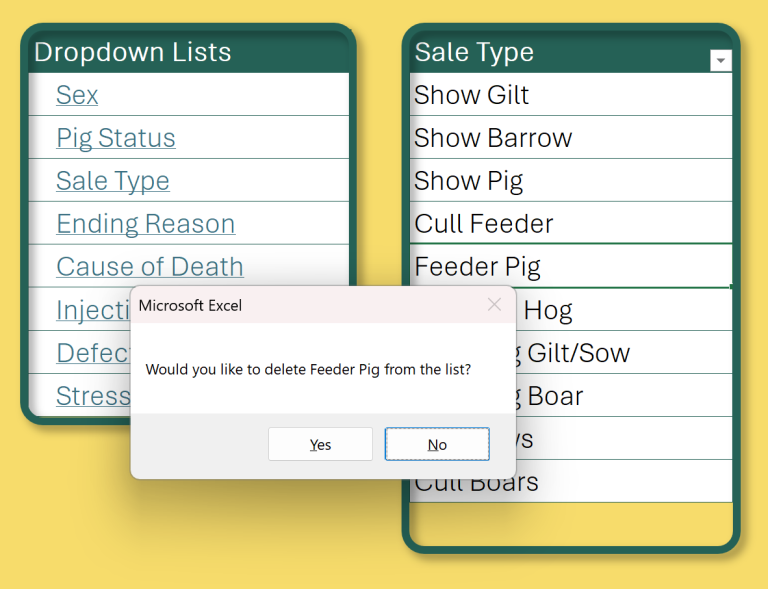
To maintain user safety and secure control of worksheet interactions, right-click functionality is intercepted by the BeforeRightClick macro. The user cannot use the right click action to insert or delete cells, copy/paste, or format cells. Instead, this event macro only allows the user to delete a value from a dropdown list via a right click. And, as part of UX-driven development, the macro asks the user for confirmation before deleting a record.
Worksheet_Change
Worksheet_Change facilitates updates, unwinds illegal actions, and keeps the page ready for future user interactions. This macro accomplishes the user’s intentions while keeping them in their flow. It does that in two ways:
- Preventing forbidden changes. Some list values are keywords used programmatically elsewhere. If a user tries to change one of those, the change is unwound and the user is reminded that value may not be changed.
- Adding new rows. If the user adds a new value at the bottom of the list, the table is expanded to accommodate the new value, the next cell is unlocked to allow the next addition, and the green border shape is extended to encompass the new cell.
In both cases, data integrity is ensured and the user doesn’t have to think about any “behind-the-scenes” impact of their actions. Everything just works.
Small Actions – Significant Impact
Every action taken by these event macros is small and seemingly insignificant. However, when put together, they create a complete, secure, intuitive environment in which the user can work. That is why it is crucial to think through, in advance, what a user needs to do and where they may run into (or create) problems. Thoughtful design – and small, but meaningful, points of interaction – results in an intuitive UI. An intuitive UI produces a positive UX. And a positive UX means a productive user and an effective spreadsheet.
Comment
Comments are closed.
Christopher
So much quality info here. Users come first. Love the approach.