

ServicesAutomationMaking an Excel Database

Making an Excel Database

Power Query is one of the most powerful tools inside Excel today. You’ve probably used Power Query to import sales, customer, or payroll data into Excel. If you need to import data into Excel, there is no better tool than Power Query.

But . . . with a small adjustment, Power Query can do more than just import records. It can execute all four standard database actions: 1) Create, 2) Read, 3) Update, and 4) Delete. You can create a database right inside Excel.

How? Easy!

Enter the self-referencing query. 

Let’s have a look.

Self-Referencing Queries

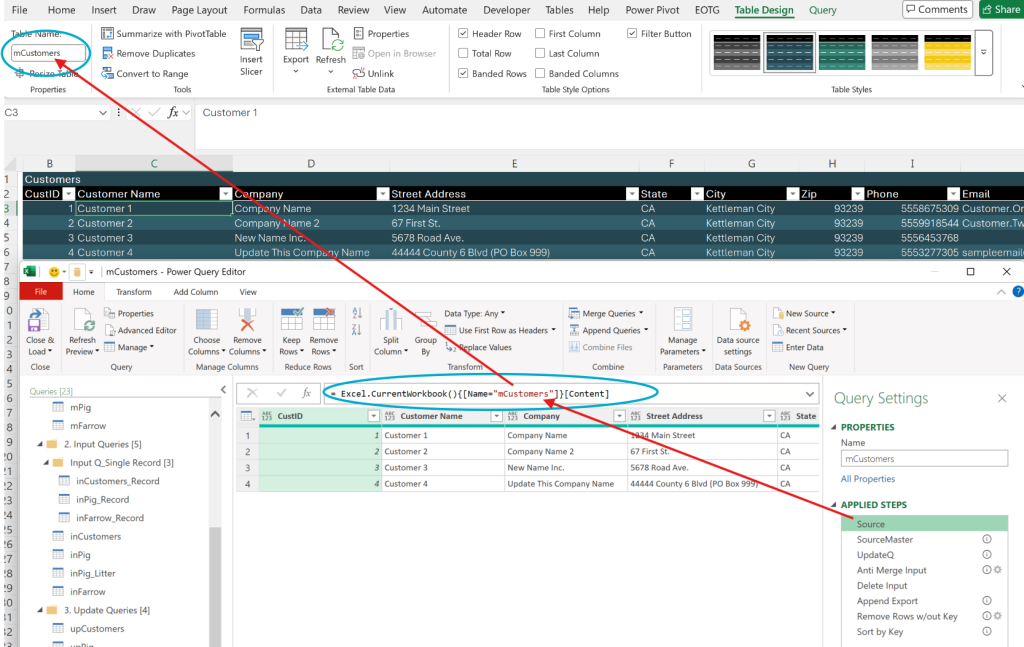
All power queries have a Source . . . the place the data comes from. Well, what happens if the Source for a Table is the Table itself? That . . . is a self-referencing query . . . or SRQ.

Normally, if you edit a worksheet cell that is part of a power query, that change disappears when you refresh it. But . . .if you change a value in a self-referencing query, that value stays when you refresh it!

You’re probably saying, “Big deal!” 

So am I.

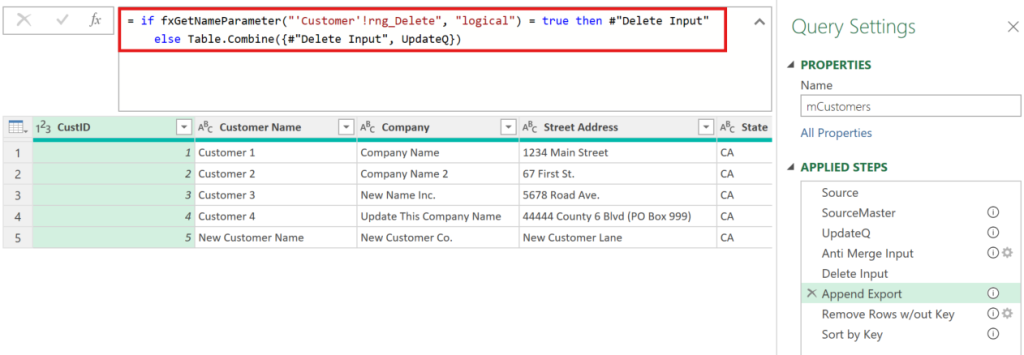
A self-referencing query doesn’t really make sense on its own. However . . . when you add a few steps to an SRQ, it becomes a full database action tool.

Let’s see it in action.

Excel "Database" . . . and Its User Interface

Here is our self-referencing query: a “database” of customer info.

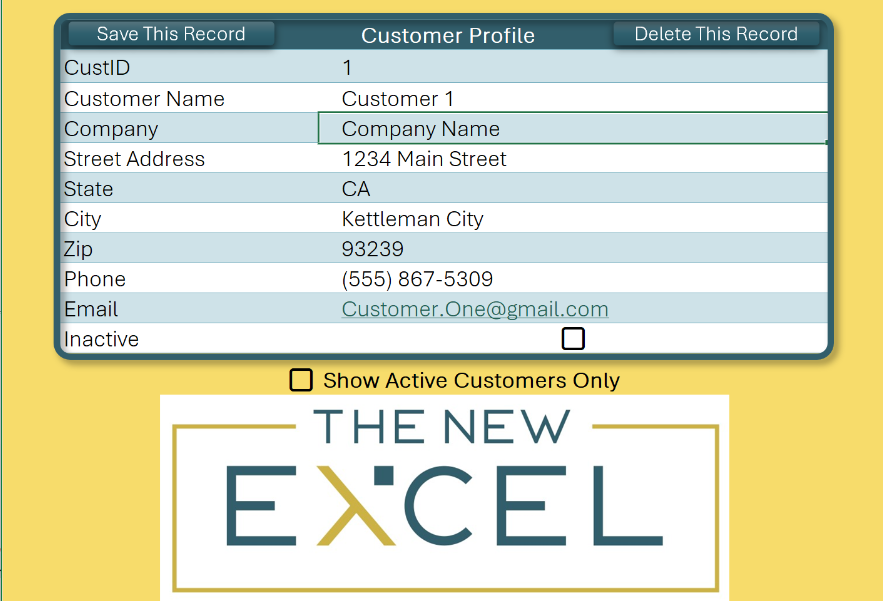
And here is an input page connected to that SRQ. This input page allows us to Create, Read, Update, and Delete records in the master database table.

We can select an existing customer – reading the master database. Or, we can change a field and “save this record”. That record is now updated in the master database.

While a macro automates the action, this isn’t VBA-driven. The VBA code simply refreshes the query. THAT is the power of a self-referencing query (SRQ).

Advanced Database Functions with an SRQ

That’s read and update. Now, let’s create a “new customer”, enter some data, and “save this record.” 

When our SRQ is refreshed, the new record is added to the database.

Finally, the SRQ allows us to delete records. With our user interface, we select a record and press “Delete This Record.” 

Just as with update and create, this isn’t VBA-driven. The macro is just refreshing the SRQ.

The input sheet has a hidden cell called rng_Delete. If this cell is set to TRUE, the Power Query steps in the SRQ will remove this record.

Conclusion

This is powerful, so let’s recap.

An SRQ, paired with an input sheet, allows us to create, read, update, and delete records in the master SRQ table. 

Almost no VBA.

Just a self-referencing query.

With established Power Query steps and already-written, easy-to-adjust VBA code, we can quickly add database functionality to any spreadsheet using SRQs.

Comments

Leave a Reply

Your email address will not be published. Required fields are marked *